For administrators
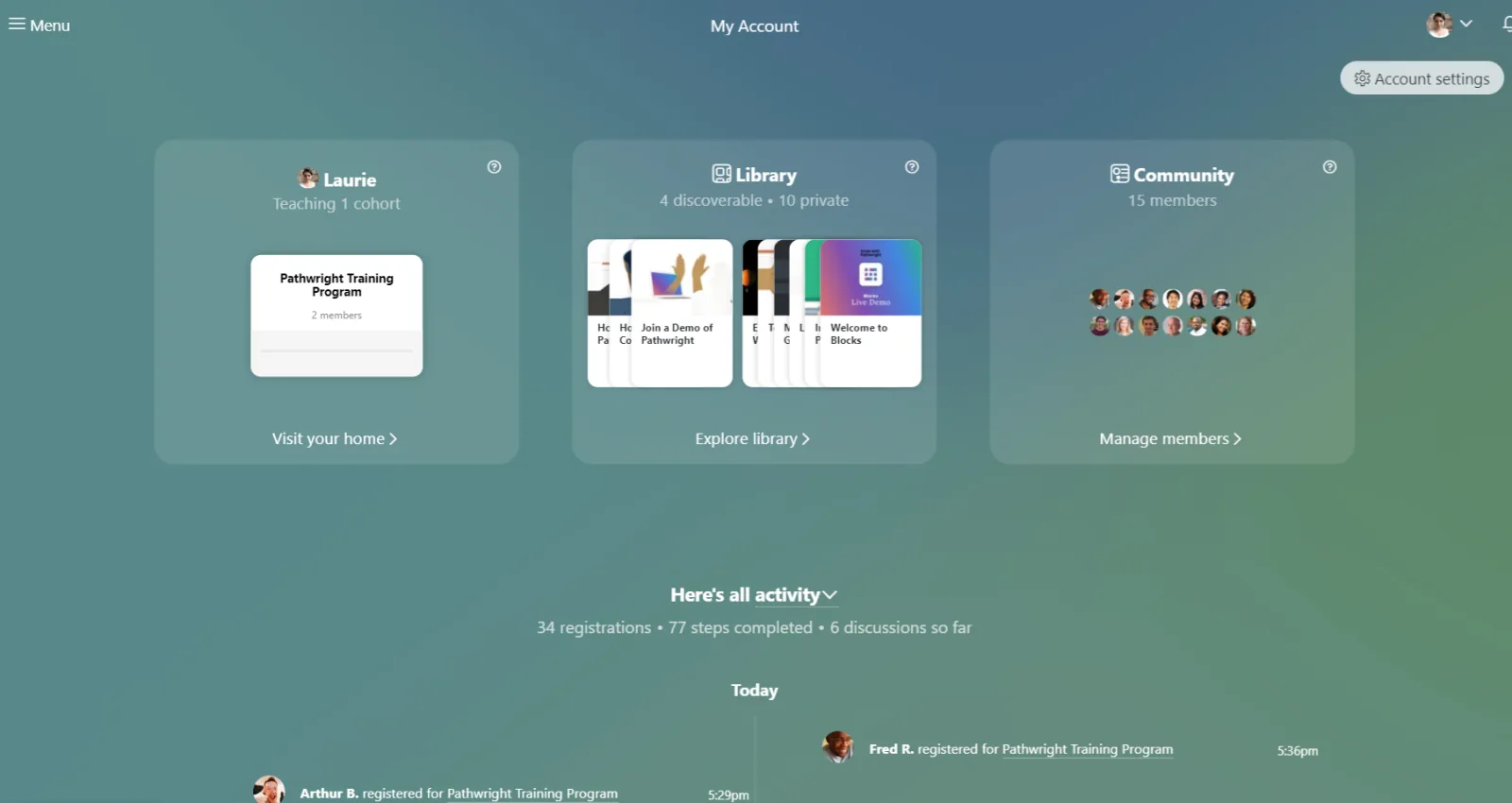
The Learning Space Community screen is a hub for inviting, viewing, configuring, and managing all the members of a Pathwright Learning Space. The Learning Space Community is accessible only by administrators.
Open by clicking or tapping the Community window on your Dashboard, or shortcut to your members from anywhere in your Learning Space by selecting "Community" from the menu.
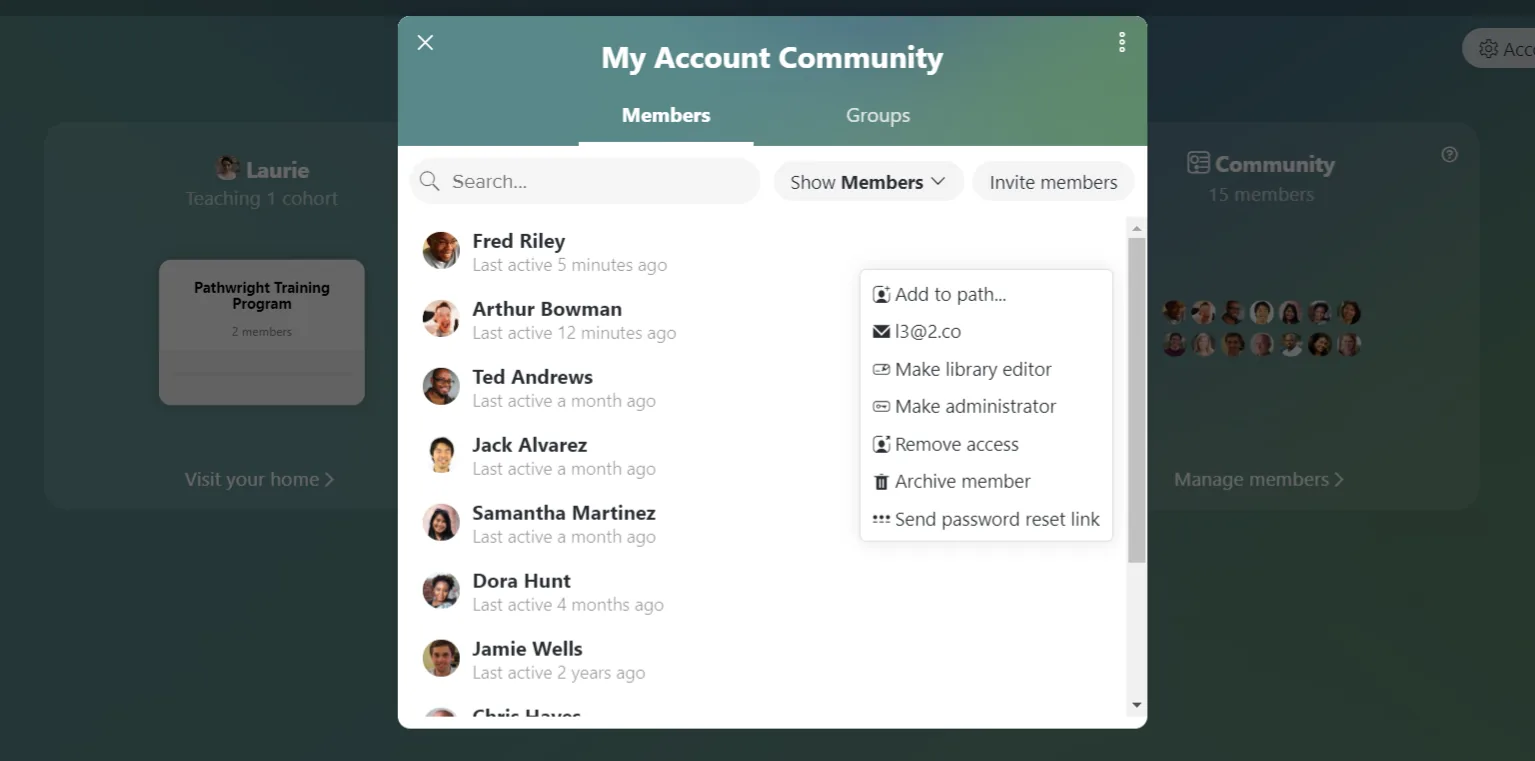
From the Members tab, you can:
- Invite members and staff.
- View sent invites.
- Search all members by name or email address.
- Filter list by members, staff, or archived members.
- View membership status and last activity of each member.
- Configure any member's role.
- Archive members.
- Control who has access to your Learning Space.
- Send a password reset link to any member.
New! Add to Path: select this to instantly assign a Path to any member. Learn more here.
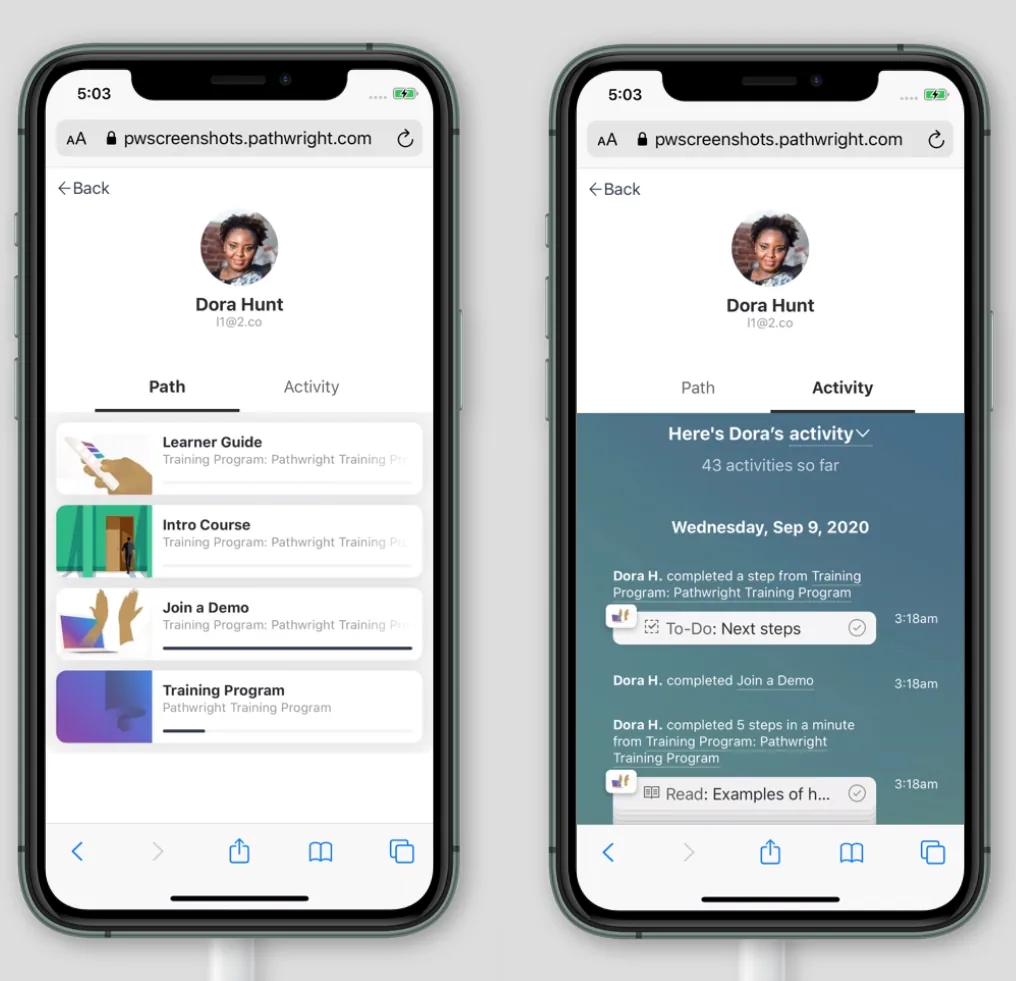
Select any member to view their member card and browse their activity and the Paths assigned to them. From a member card, you can:
- View that user's activity.
- Quickly see which Paths a user is taking and navigate directly to the progress report for the Paths that the user is enrolled in.
- Message the user if she is not currently enrolled in a Path and suggest a Path to take.
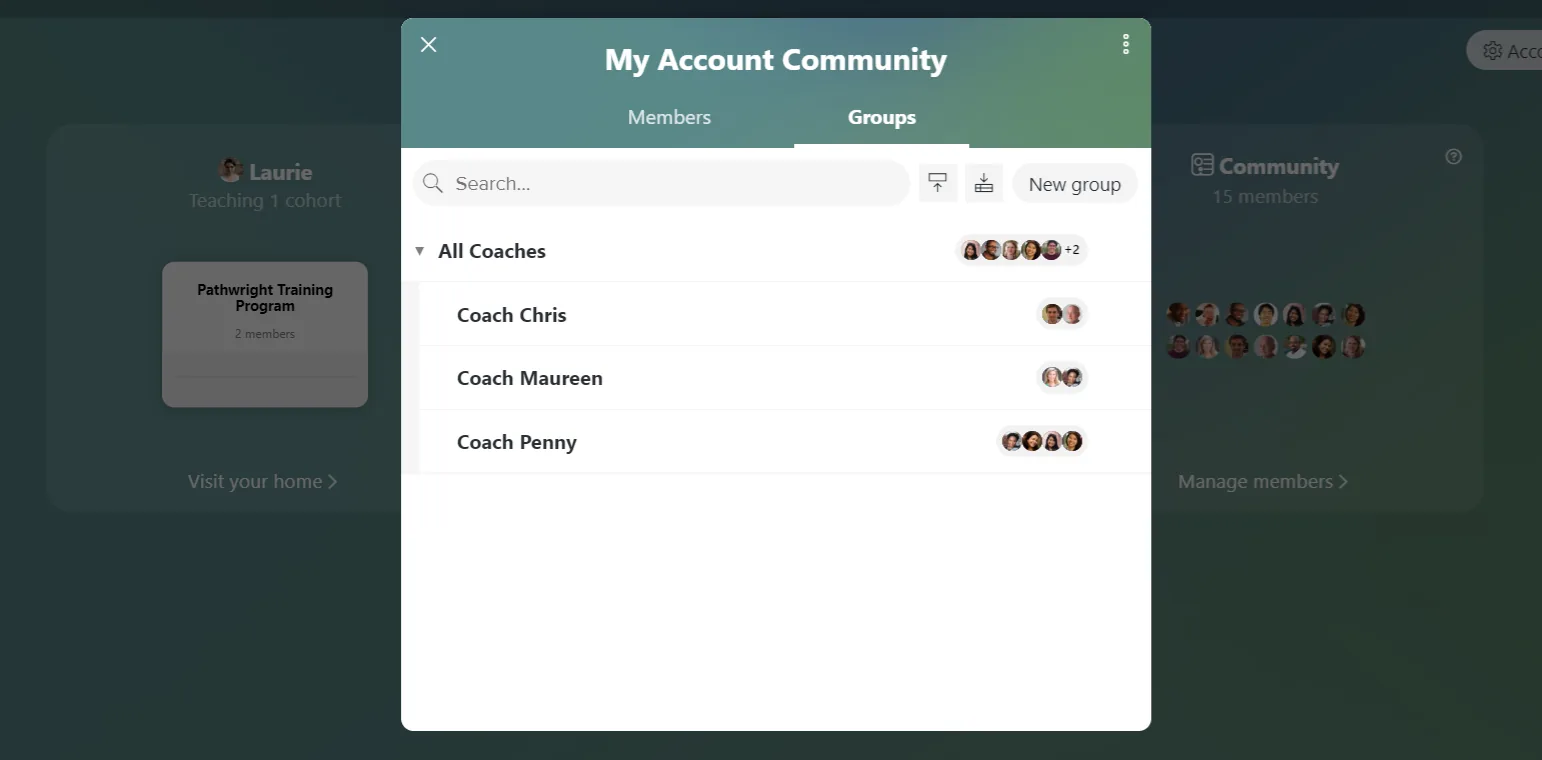
Beside the Members tab, you'll also see a Groups tab. From this tab, you can...
- Create Mentor Groups
- View and search all Mentor Groups
- Manage all Mentor Groups
- Invite leaders, mentors, and members to Mentor Groups
Learn more about Mentor Groups here.