
Add a podcast, a piece of music, a listening lecture, an interview, a foreign language recording, or other audio file to your course Path.
A sample Audio Block: learner preview mode on the left, edit mode on the right
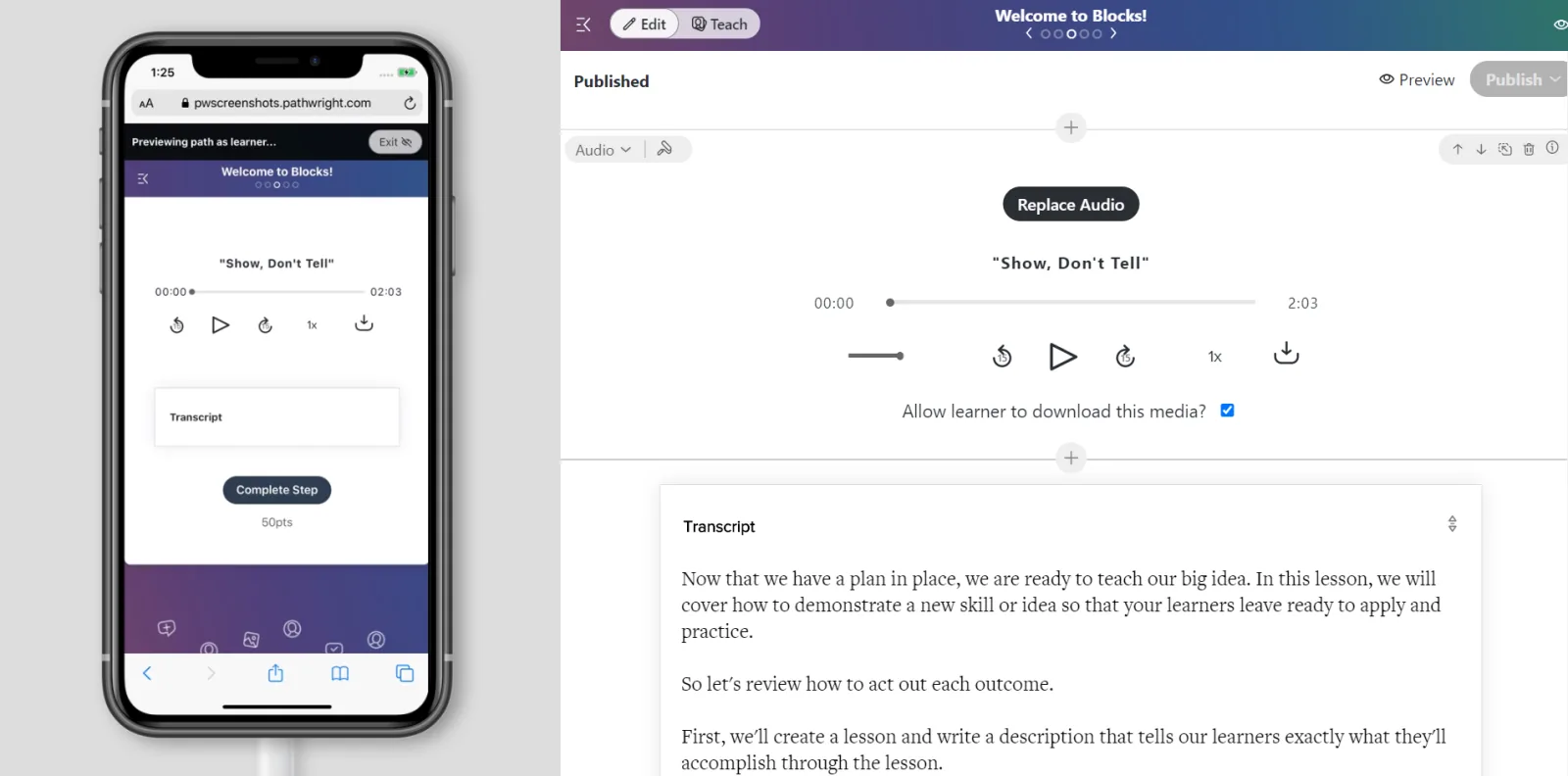
- Create a new step on your course Path and open the step.
- Select "Media" then "Audio." You've added a Block to your step!
- Select "Replace audio" and use the Media Manager to insert your file, or click "Upload" then "Record" to record a new audio clip.
- Optionally add more Blocks. When finished, hit Save.
Optionally allow learners to download the audio file by checking "Allow learner to download this media?"
The built-in audio player includes...
- Upload audio as .mp3 files, up to 100 MB each
- Optionally record audio clips on the spot and upload instantly
- Play/pause button (no autoplay currently)
- Manual "scrubbing" or adjusting your place on the audio
- Jump forward and backward by 15 seconds
- Adjust speed up to 3x faster or half speed
- Adjust volume
- Optionally allow learners to download
- Upload multiple files at once (new!)
Q. Can I embed an audio file from SoundCloud, SermonAudio, or elsewhere?
A. Yes, you can use the Embed Block to embed a file from another audio host.
Q. Can I include a transcription of the audio?
A. Yes, add a new Accordion Block (pictured above), Text Block, or Files Block and add your transcript, or add it to the Notes area.