
Add a clickable button to your Blocks for various link types, including external resources like forms, websites, internal apps—even an invitation link to join another path in your Learning Space.
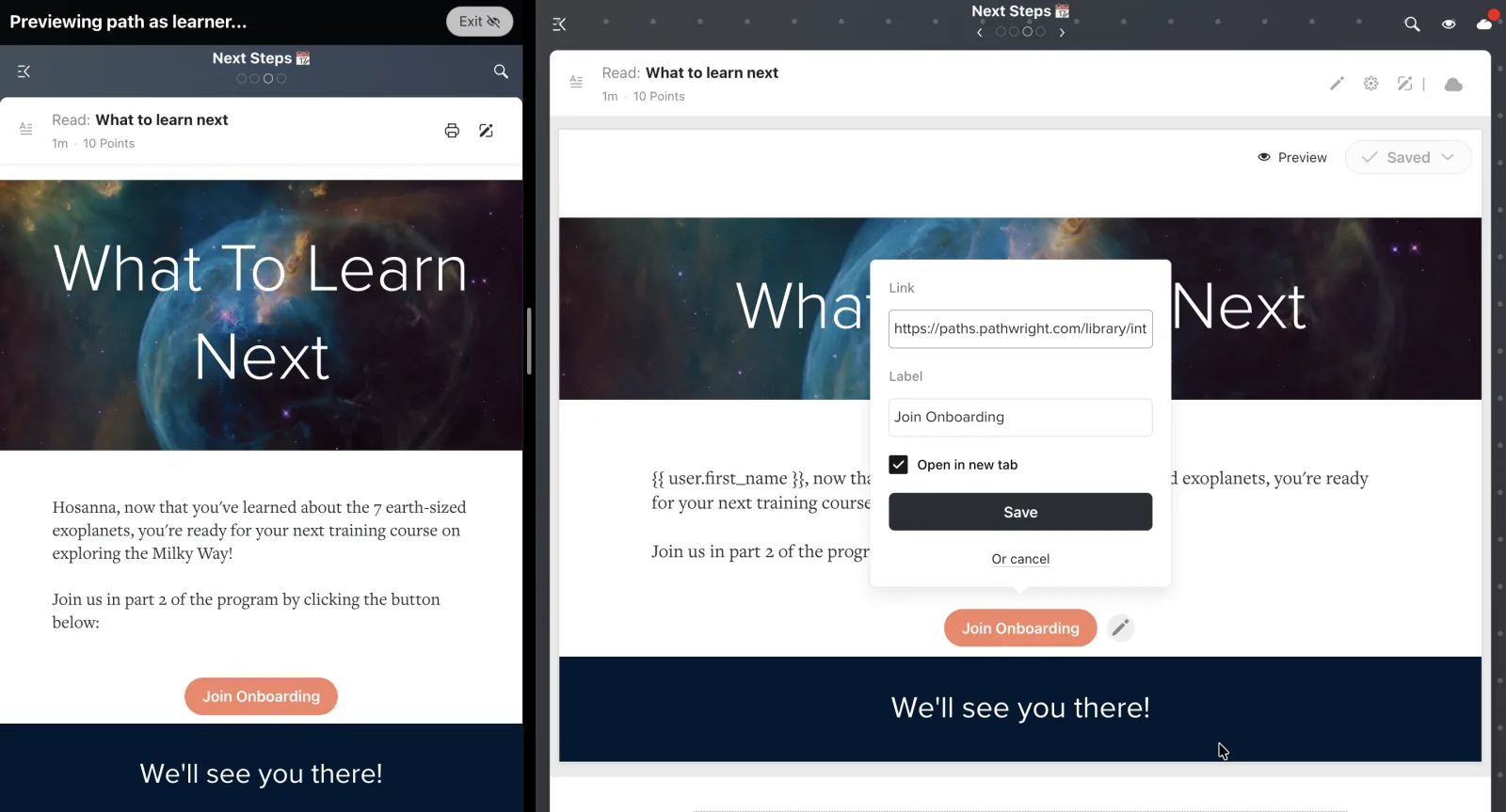
Sample Button Block: learner preview mode on left and edit mode on right
- Create a new step on your course Path and open the step.
- Select "Interactive" then "Button." You've added a Button Block to your step!
- Click the edit icon to paste in your link URL to the Link field.
- Optionally, edit the Button Label and/or uncheck the box for "Open in new tab."
- When finished, hit Save.
With the Button Block, you can...
- Link to anything—an external website, a form, even an invitation link to join another path in your Learning Space.
- Edit the button label
- Choose whether the link opens in a new tab for learners
Learners can...
- Click the button to be taken to any destination.