---
title: 🔗Embed Anything Block
description: Embed video, audio, surveys, and other third-party media with the Embed Anything Block.
source: intercom
original: https://help.pathwright.com/en/articles/2580564-embed-anything-block
retrieved: 2026-11-09
visibility: public
date: 2025-05-16
author: /people/pathwright-team.person.md
intercom-id: "2580564"
collection: Create a Path
section: How to Add Content with Blocks
---
# 🔗Embed Anything Block
You can embed just about anything that provides a secure embed code with the Embed Anything Block.
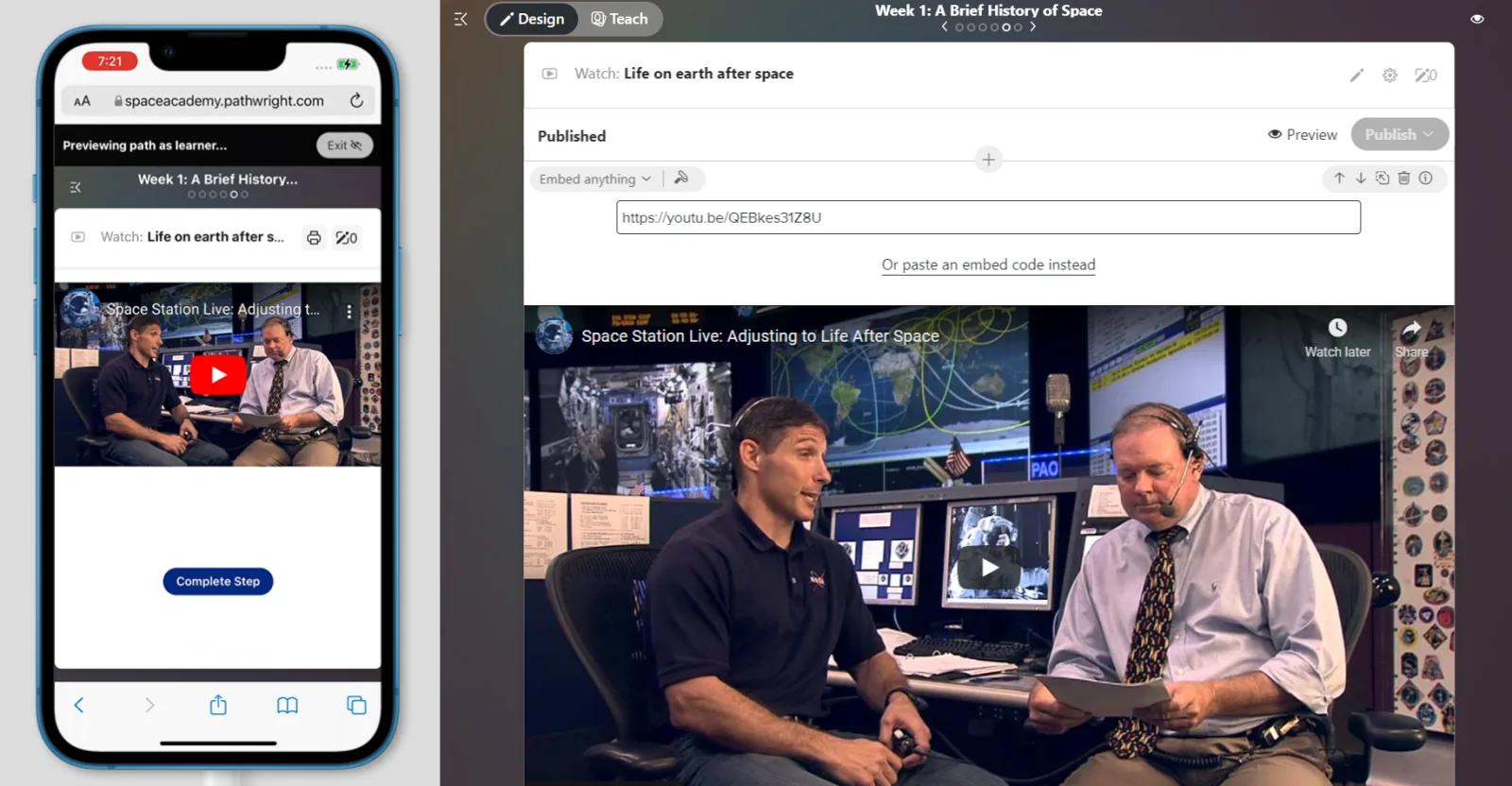
*Sample Video Embed: learner preview mode on left and design mode on right*
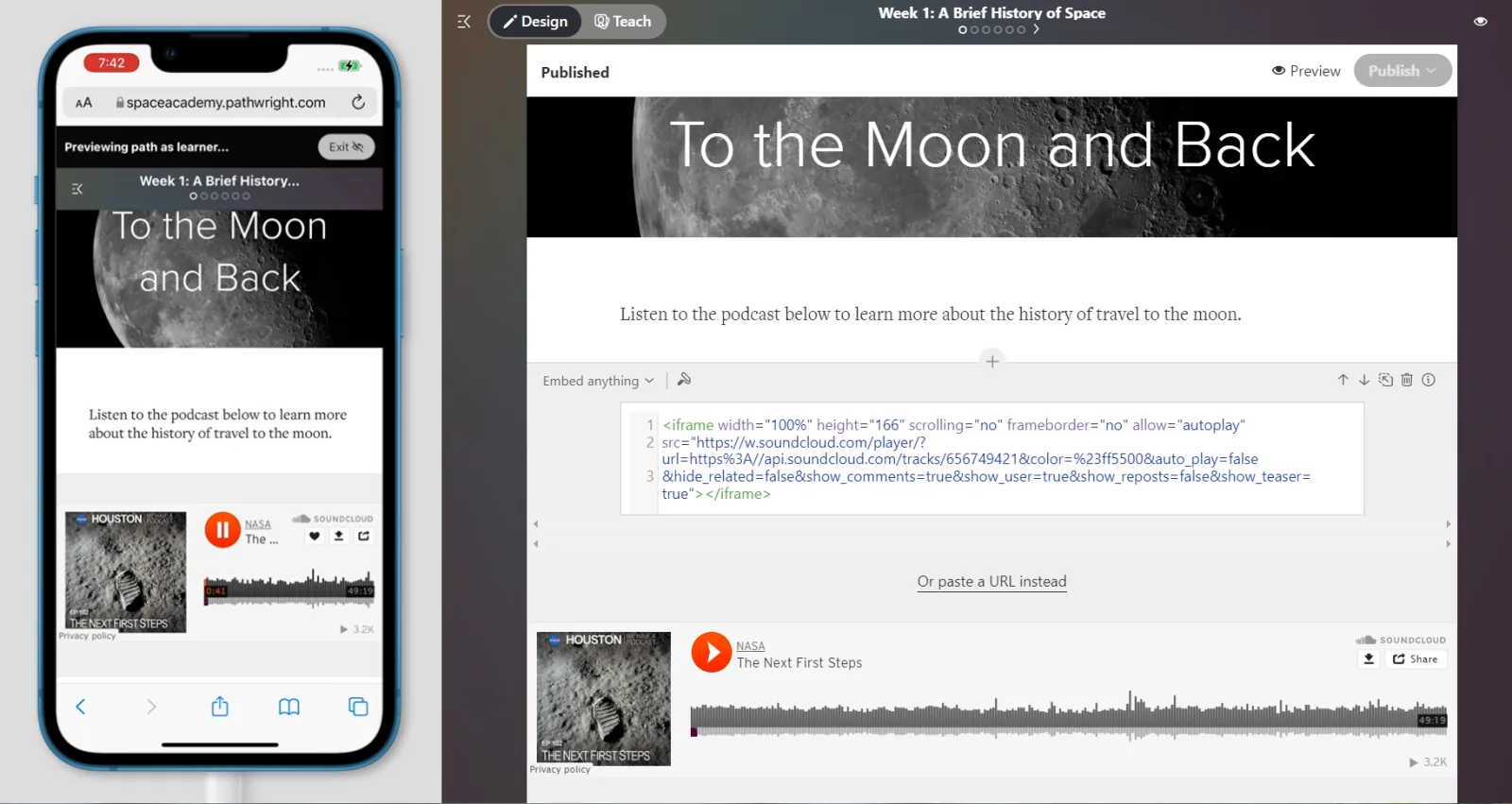
*Sample Audio Embed: learner preview mode on left and design mode on right*
---
## How to embed just about anything
1. Create a new step on your course Path and open the step.
2. Select **"Media"** then **"Embed Anything."** You've added an Embed Block to your step!
3. **Paste in your URL** (or paste the full embed code into the appropriate field).
4. Optionally add more Blocks. When finished, hit **Save.**
\*If embedding unlisted or private videos from YouTube or Vimeo, please see the FAQs below for specific privacy setting requirements.
---
## What can I embed?
Most commonly, this is used to embed video, audio, and surveys from third-party services, such as:
- Videos from Vimeo, YouTube, Wistia, etc
- Audio from SoundCloud, SermonAudio, etc.
- Surveys from Typeform, Google Forms, etc.
- Interactive H5P objects
- Also embed PDFs from Scribd, slide presentations from Google Slides, and more.
**💡Tip:** You can also drop a "shareable" invite link into an Embed Anything Block to prompt learners to enroll in the next recommended Path. [See how to get your "shareable" invite link here.](../../add-and-manage-staff-and-members/inviting-people-to-a-course/share.help.md)
## Features
With the Embed Anything Block, you can...
- Embed via URL
- Embed via full embed code and edit the code
- Easily reorder and reuse the finished Block
---
## FAQs
### Q. Can you host my video or audio content?
A. Yes, use an [Upload Video Block](./upload-video-block.help.md) to upload your video files. Use an [Audio Block](./audio-upload-block.help.md) to upload your audio files.
### Q. Why isn't my private video showing up for learners?
A. Some privacy settings will not allow your videos to be viewed by learners when embedded in your Path.
- *Private* YouTube videos cannot be viewed by learners when embedded. Use the *Unlisted* setting instead.
- [Private Vimeo videos that are restricted to embedding on certain domains](../../faqs-and-tips/video-tips/restrict-playback-of-your-vimeo-plus-videos.help.md) will need your domain (\*.pathwright.com or your custom domain) whitelisted. You will also need to have the following domain whitelisted when you embed from the URL: [cdn.iframe.ly](http://cdn.iframe.ly/).
### Q. Can I link out to third-party content with a hyperlink instead?
A. Absolutely. Add any [Text Block](./text-blocks.help.md) and then highlight the text you'd like to hyperlink. In the editor that pops up, select the hyperlink button. Enter your link and then hit Enter.
### Q, Can I embed a button link?
A. Yes, you can use the [Meeting Block](./meeting-block.help.md) to add a link out to a virtual meeting or calendar app (or anything, really).
### Q. My H5P objects or other third-party embeds aren't loading correctly. What can I do?
A. Some types of embeds ask you to inject a script into your school header. You can paste your code under Dashboard > Account Settings.
### Q. Can I embed using SCORM?
A. We are currently unable to export to or import from SCORM. We've been looking into the new Tin Can version of SCORM since it is a better, more future-oriented version, but we don't have a timeline for implementing it.
### Q. Can I embed \_\_\_\_?
A. You can embed content created in a third party program within a step on Pathwright as long as it meets the following criteria:
- It provides an embed code or supports embedding from the URL.
- It's hosted on a server that is under **https** (a secure connection).
- It's no wider than 900px (or it should adapt responsively to the screen width, ideally).
- You have permission to use the material.
If the embed code provided by the third-party service does not load correctly, you can create an iframe by inserting the following code into the embed field:
\
Now, change the URL (using http**s**://) to point to where your hosted file is stored. You can adjust the height and width if needed.
You can also generate a responsive embed code by pasting your link here: [https://iframely.com/try](https://iframely.com/try)
**Q. My Typeform isn't embedding correctly on mobile, what do I do?**\
A. For a responsive embed code for Typeform, replace the URL in the code below with your own and paste in as an embed code:
\
❔[Learn more about Blocks.](../making-a-path/copy-paste-lessons-and-steps-instantly-reuse-your-content.help.md)