
Markdown is a simple, user-friendly coding language somewhat similar to HTML (but more intuitive), which can also include HTML tags.
A sample Markdown Block: learner preview mode on the left, edit mode on the right
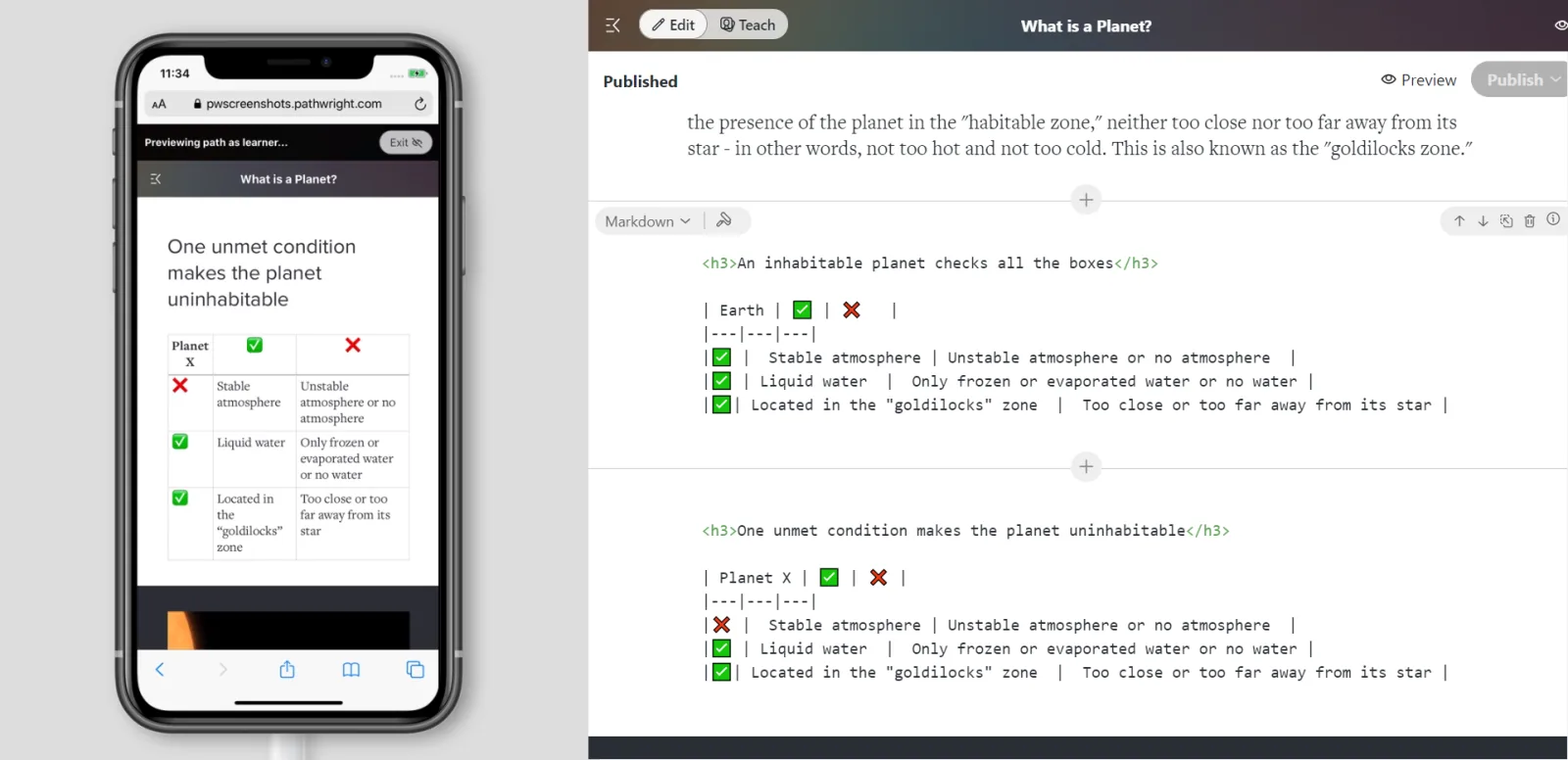
- Create a new step on your course Path and open the step.
- Select "Text" then "Markdown." You've added a Block to your step!
- Enter Markdown code.
- Optionally add more Blocks. When finished, hit Save.
With the Markdown Block, you can...
- Write formatted text
- Paste in text created elsewhere with Markdown and preserve all your formatting
- Insert code
- Create tables
You don't need to master Markdown to start benefiting from it. You can use it make a simple, web-responsive table using the tool below and just copy the output into a Markdown Block in Pathwright. Voila! You have a table in your step which you can easily edit. Be sure to switch to Preview mode to see the table as learners will see it.
https://www.tablesgenerator.com/markdown_tables
Or, enter a ">" before text inside a Markdown Block and you'll have a nicely styled blockquote.
There are many other applications, so check out the documentation on the web for Markdown to learn more, but these are two quick wins anyone could use.