
Easily request a file or link of any type from a learner. They can upload without leaving their Path and you can review their work upon notification and leave feedback.
Sample Submit Block: learner preview mode on the left and edit mode on the right
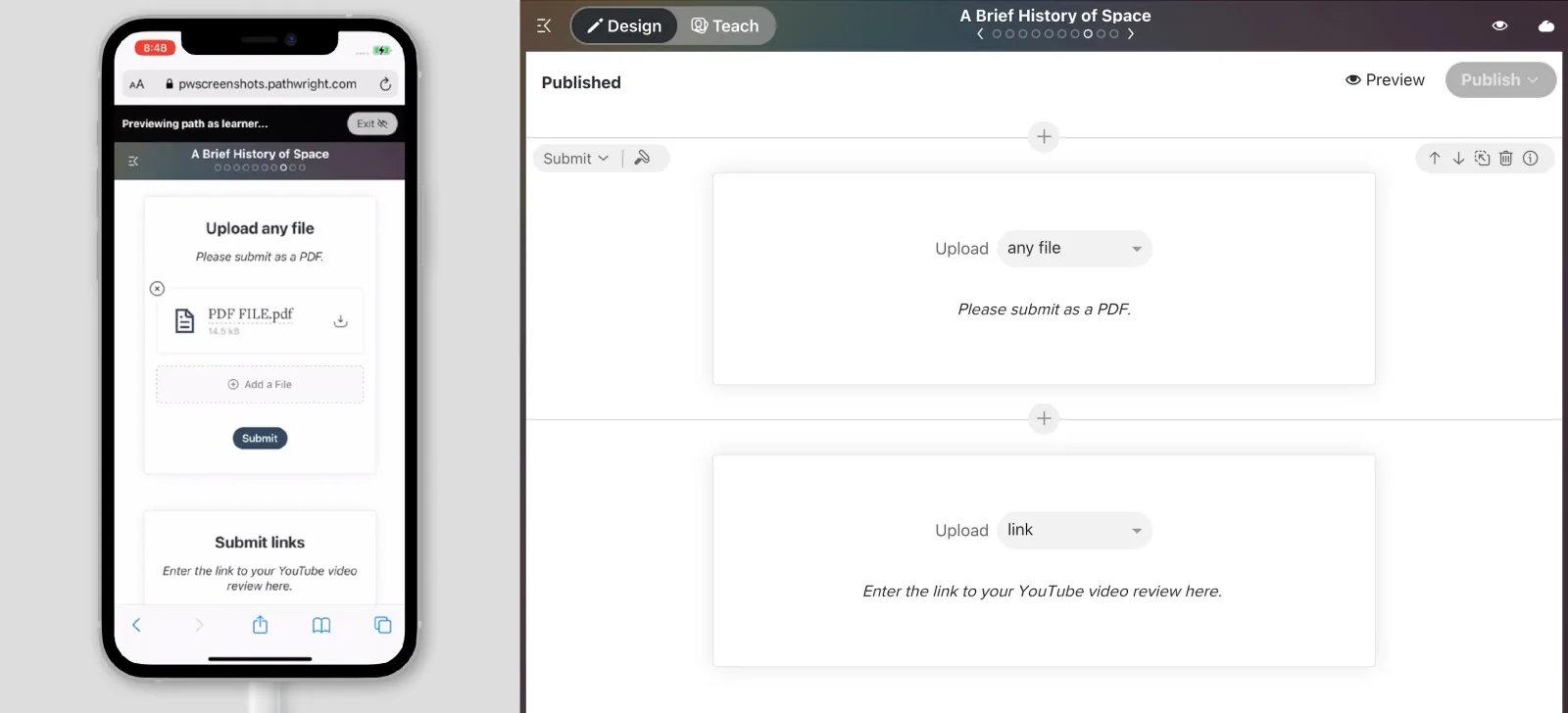
Use a Submit Block when....
- You want the learner to upload a file or link for review.
- The upload should be visible only to the learner himself and to staff.
- Staff can review the submission and optionally provide feedback and/or points.
- Create a new step on your course Path and open the step.
- Select "Task," then "Submit." You've added a Block to your step!
- Select the type of file you want learners to submit and optionally add custom instructions. Select Preview to see what it will look like for learners.
- Optionally add more Blocks. When finished, hit Publish.
Staff can...
- Specify what type of file you want learners to upload.
- Add custom instructions.
- Leave text, image, video, and audio feedback or return a corrected copy.
- Award points (optional).
Learners can...
- Upload an image, audio or text file up to 100 MB in size.
- Upload a video file up to 500 MB in size.
- Upload multiple file types up to 500 MB in size using the "any file" option.
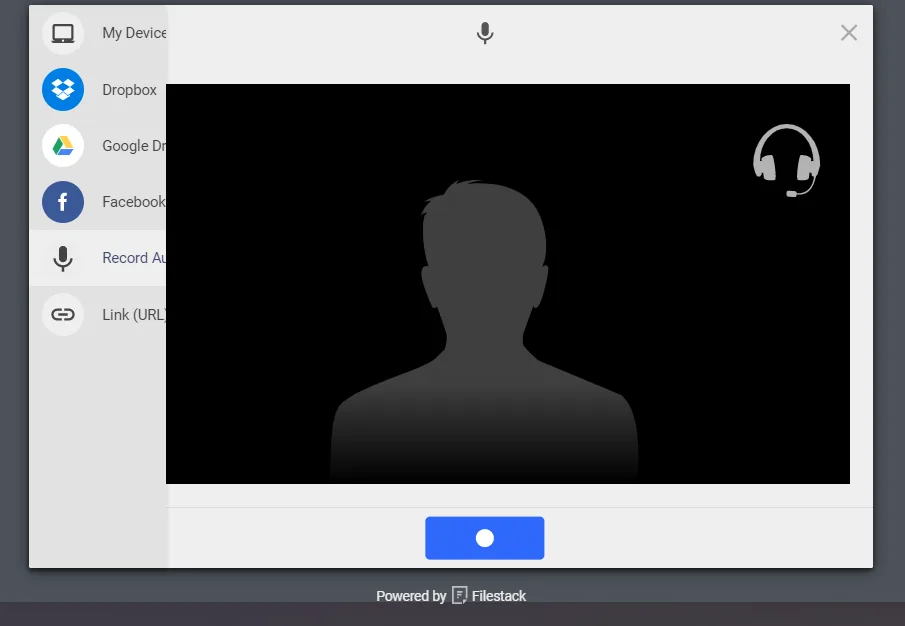
- Upload from their device, Dropbox, Google Drive, Facebook, or a link to a file.
- Submit a link to something on a webpage (YouTube, Vimeo, an article, etc.)
- Record audio or video on the spot and upload it instantly.
- View feedback and points via email notification and in the interface.
- Replace or access the file or link later.
A. Open the step settings to adjust these settings and more for the step.
A. By default, learners can reset and retake any step any number of times. To limit learners to a single attempt on all the assessment questions on a step, open the step settings and disable retries.
A. Learners can now upload multiple files or links per Submit Block (new!). All files or links will need to be the type you've specified for that Submit Block.
A. We'd like to add support for optional Blocks in the future. In the meantime, consider using optional steps for optional submissions. Learners will be required to submit something to each Submit Block on a particular step in order to complete the step, but they can skip optional steps. You can add as many Submit Blocks per step or Path as you like.
A. Add an Open Response Question Block to your step. Learners can type and paste text and links into their response. Learners won't be able to type a text-based answer directly into a Submit Block.
A. Other learners can't see submissions here, but you can ask learners to upload their files to the Path discussions in addition to or in place of using the Submit Block.