For learners
We'll cover how to review work you've completed within a course, how to review courses that you've previously completed, and finally, how to retrieve your certificate from a completed course (if applicable).
- You can review a completed lesson or step anytime from the Path.
- Click or tap the lesson to expand and show all the steps. Select the step you wish to review.
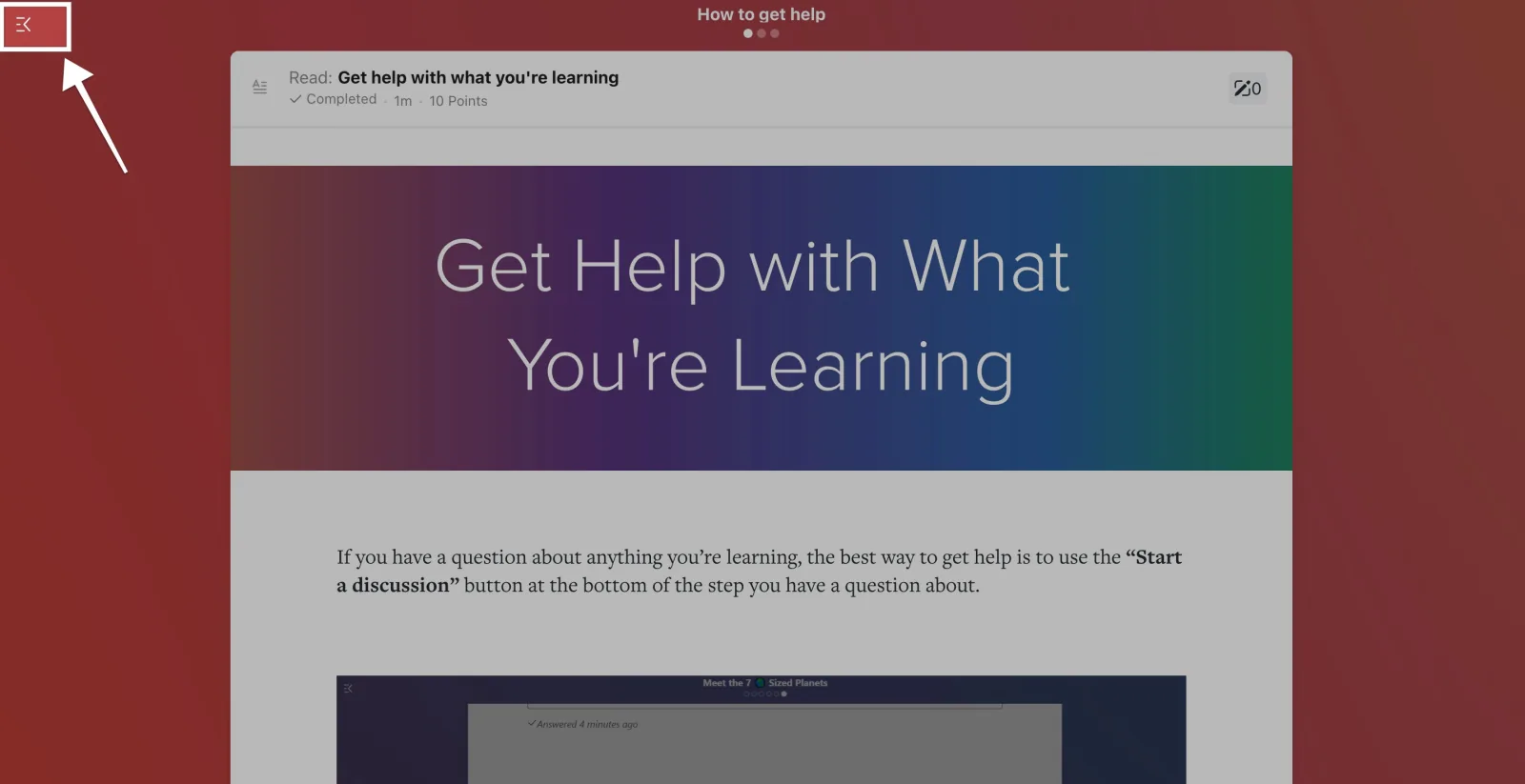
Note: When you're inside a step, you're in "focus mode." To exit back to the Path, click the "back to Path" icon in the upper left corner, then you can select a different step from the Path.
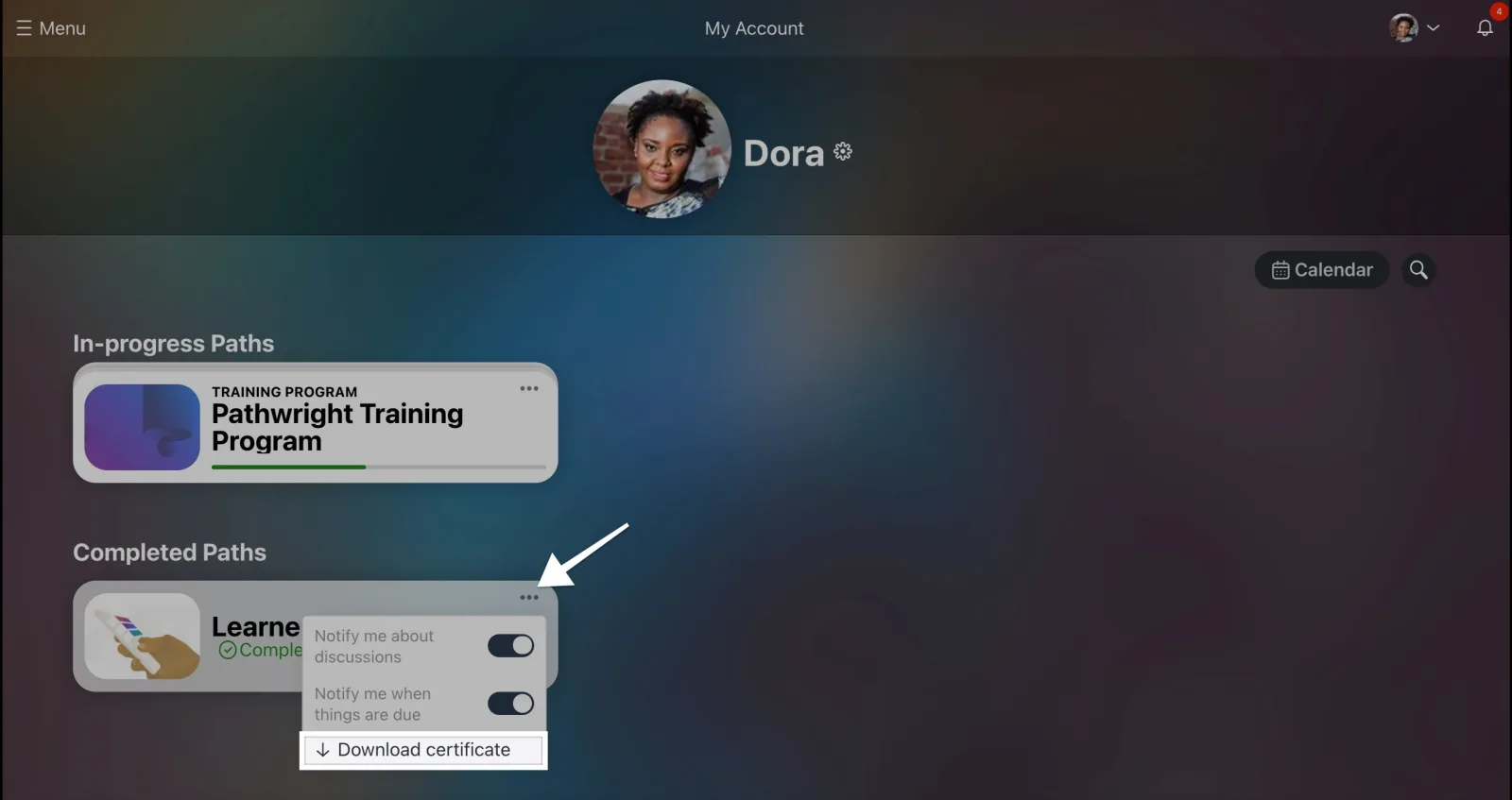
As long as you retain access to a course, you'll be able to open it from your Home page after logging into your account. Look for completed courses towards the bottom of the page under "Completed Paths."
If your course provides a certificate of completion, you can access your certificate for as long as you have access to your account.
- Find the completed course on your Home screen and click on the three dots to open the "additional actions" menu.
- Click the "Download certificate" link from the menu.
See further instructions on accessing your certificate of completion here.